



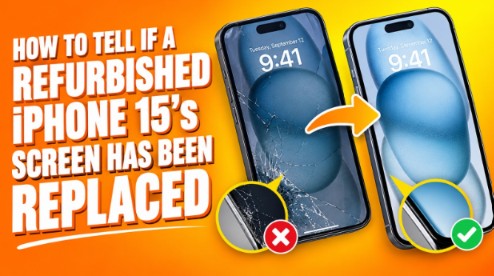
A cracked screen is one of the most common reasons an iPhone ends up on the refurbished shelf. So many refurbished phones have had a new screen at some point. That is not automatically a problem.
What matters is the screen type, how well it was fitted, and whether the seller tells you the truth. If you are shopping for a refurbished iPhone 15 in Australia, this guide shows you how to check. You need no tools. Just a few minutes with the phone.
Is a Replaced Screen Always a Bad Sign?
No. A good repair with a quality part can work well. A phone with a fresh screen can look better than one with years of tiny scratches.
Trouble starts when a cheap part is used, or the repair is done badly. Apple warns that non-genuine displays can cause problems. These include touches that register by accident during calls and a screen that stays on when it should switch off. Colour and brightness can also suffer. True Tone may stop working properly.
So the real questions are simple. Was the screen replaced? With what part? And did the seller tell you?
Step One: Read the Parts and Service History
This is the best test. It takes less than a minute.
Open Settings. Tap General. Tap About. Scroll down to Parts and Service History. This works on iPhone 11 models and later.
A replaced screen can show up as a tag beside Display. Apple has three tags. Genuine means Apple parts and methods were used. Unknown means the part might not be from Apple, was not fully installed, or is not working as it should. Used means the part came from another iPhone.
No Parts and Service History section usually means no repairs were logged. If you see Unknown, ask the seller about it before paying. Apple also says an Unknown part can reduce trade-in value.
Remember that a label is a clue. It is not a verdict. Some Unknown labels come from perfectly working repairs. But you should know about them.
Step Two: Check True Tone
True Tone adjusts your screen colour to the light around you. A non-genuine screen, or one without proper calibration data, can lose it.
Go to Settings. Tap Display and Brightness. Look for the True Tone switch. The iPhone 15 supports it. A missing or stuck switch could mean the screen was swapped.
You can also open Control Centre and press and hold the brightness slider. The True Tone button should show there too.
Step Three: Look Closely at the Edges
Now use your eyes. Hold the phone under good light.
This time you have to check the screen carefully and try to find a gap between the screen and frame. It should be even on all four sides. Uneven gaps can point to a screen that was refitted. Check the corners for tiny lifts. Look for dust or lint trapped under the glass near the edges.
Check the screws at the bottom of the phone next to the charging port. Damaged or mismatched screws can show that the phone has been opened. This is not proof of a problem. But it tells you the phone has been repaired before.
Finally, tilt the phone and look for a rainbow glow or light leaking around the edge of the display.
Step Four: Test the Screen Itself
Turn the brightness up. Then run a few simple tests.
Open a plain white image. Look for yellow patches, pink tints, or dark spots. Next, open and view a solid black image in dim light. Look for glowing patches or bright dots. Dead pixels show up best on these two backgrounds.
Check the colours. A replaced screen sometimes looks cooler or warmer than a genuine one. Compare it with another iPhone if you can.
Test touch. For this, you have to open an app; go ahead and type. Type a long message. Swipe through photos. The screen should respond smoothly everywhere with no dead zones.
Finally, make a quick phone call. Hold the phone to your ear. The screen should turn off. Your cheek should not tap any buttons.
Step Five: Ask the Seller Directly
Questions are free. A good seller answers them clearly.
Also ask if Parts and Service History lists any Unknown or Used tag.
Notice how the seller responds. A fast, honest reply is encouraging. Vague answers or avoided questions are not.
Refurbished vs New: What to Expect
A new iPhone 15 has its original screen. There is nothing to wonder about.
A refurbished phone may have an original screen or a replacement. Neither is automatically better. What counts is the quality of the part and the honesty of the description.
Apple runs its own refurbished store, called Apple Certified Refurbished. It is useful to see how the maker describes refurbished products. Stock varies by country and product. Use it as a reference point for the level of detail you should expect from any seller.
Where Trade.com.au Fits In
Choosing the seller matters as much as choosing the phone. Trade.com.au shows real photos of the actual phone. That helps with this exact question. You can study the screen edges and the corners yourself before you buy.
By its own description, Trade.com.au puts refurbished devices through a 72-point check. A 12-month warranty is included too. Check what that warranty covers, and ask the team if a specific phone has a new screen.
To see what is in stock, browse the current Refurbished iPhone 15 Australia listings. Zoom in on the photos and compare conditions.
Final Thoughts
A replaced screen is common on a refurbished iPhone 15. It is not a dealbreaker. A poor part or a dishonest seller is.
Check Parts and Service History first. Then test True Tone, study the edges, and run the screen tests. Ask the seller plain questions and listen to the answers.
Take your time. A few careful minutes now can save you from a screen that disappoints you for years.
One note on your brief. The target page URL and required anchor text fields were still blank, and no secondary keyword was supplied. So I used only the primary keyword link you gave me. Send me those details if you want more links added.